
Button Mapper: Remap your keys
flar2Personalization
3.41.67K Reviews
- Version
- Varies With Device
- Installs
- 5.00M
- Age Rating
- Everyone
Screenshots
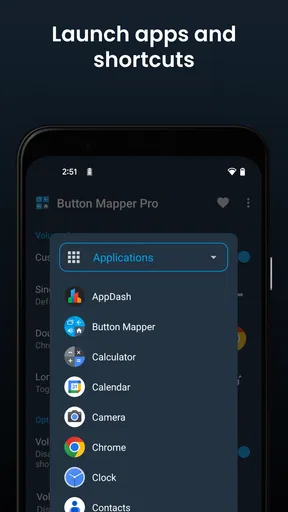
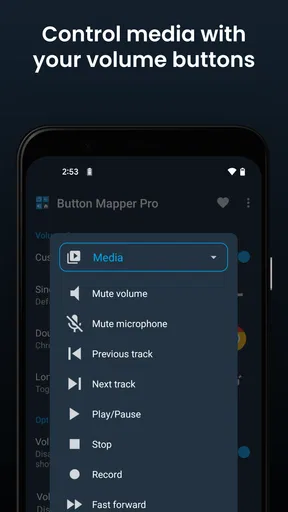
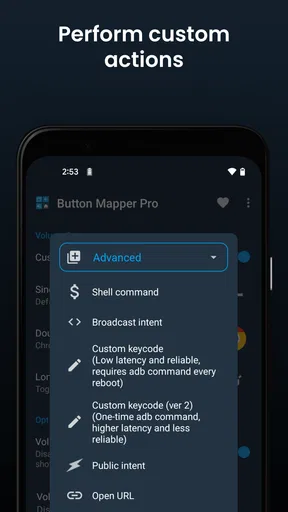
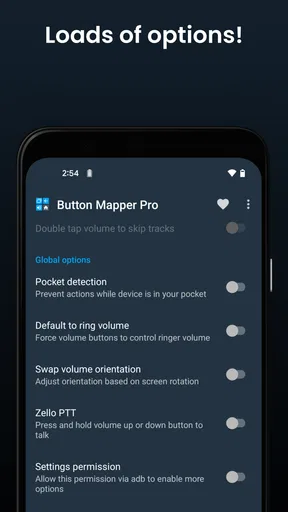
Our Review of Button Mapper: Remap your keys
 Analysis by Appyee
If you've ever wished for a little more control over your smartphone's buttons, then Button Mapper: Remap your keys might just be the app you're looking for. This nifty tool gives you the power to remap your device's buttons to perform a variety of customizable actions. Let's dive into how it works and why you might want to give it a try.
Where button remapping can get confusing
The idea is simple, but the first challenge is deciding what a button should do without making the phone harder to use. A shortcut feels useful when it saves a repeated trip through menus; it becomes a nuisance when it fires accidentally or replaces a button behavior you rely on. I’d start with one change, use it for a few days, and only then add another. That makes it much easier to tell whether the new mapping is genuinely helping.
Button behavior can also vary by device. A phone may have a physical home button, volume keys, or controls that behave differently from those on another model. The practical point is to work with the buttons your own phone exposes, rather than assuming every example will be available or behave identically. If a control is central to normal use, choose a low-risk action for it first.
Unlocking Your Device's Potential
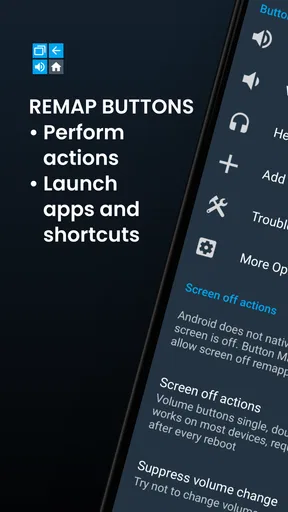
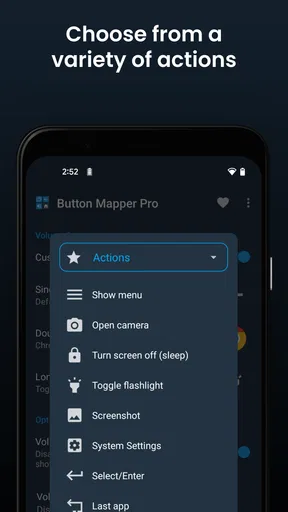
Most of us use our phone buttons for their basic functions, but what if they could do more? With Button Mapper, you can transform your volume buttons, home button, and even some of the newer gesture-based controls into shortcuts for almost anything. For instance, you can set your volume button to launch your favorite app, turn on the flashlight, or even take a screenshot. It's like giving your phone a secret set of superpowers.
Easy Setup and Customization
One of the first things I noticed about Button Mapper is how user-friendly it is. The app guides you through the setup process with clear instructions, ensuring you don’t get lost in a sea of options. Once installed, you can start configuring your buttons right away.
Checks that make setup less frustrating
Before changing several controls, I’d check that the intended button is recognized and that the action selected is one you can test safely. Try the mapping while the phone is unlocked and in ordinary use first. If the action does not happen, return to the app and review the chosen button and trigger rather than repeatedly pressing harder or changing unrelated settings.
It is also worth remembering what the button already does. Volume keys are easy to reach, but repurposing them can interfere with a quick adjustment when you are listening to something or trying to keep your phone quiet. A camera shortcut may be convenient, for example, but not if its trigger is easy to activate while the phone is in a pocket. I prefer actions that are useful on demand and unlikely to cause trouble when triggered by mistake.
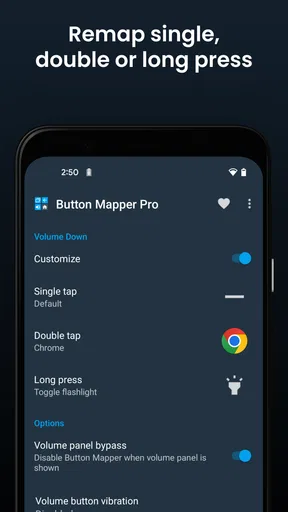
The customization options are pretty extensive. You can assign different actions for single taps, double taps, and long presses. This means you can set up three separate functions for each button, maximizing your device’s functionality. I found this especially useful for multitasking; with just a couple of taps, I could switch between apps or trigger specific features without having to navigate through menus.
A World of Possibilities
So, what can you do with Button Mapper? The possibilities are almost endless. Here are a few ideas:
- Launch your camera app with a double tap of the volume button.
- Control your music playback with a long press.
- Quickly toggle between silent and normal modes.
- Use the home button to open your most-used app.
- Activate Google Assistant with a single button press.
These are just a few examples, but you can tailor the app to fit your specific needs and preferences. It's all about making your device work for you.
Making shortcuts fit a real routine
A useful test is to pick one task you perform several times a day and ask whether a physical button would make it quicker. If you often open the camera while carrying groceries, a reachable shortcut may save fumbling with the screen. If you listen to music while walking, a playback action can be more practical than unlocking the phone each time. Those are personal workflows, though, not universal settings; the best mapping depends on which buttons are comfortable to reach and which actions you actually repeat.
There is a trade-off when assigning several triggers to one button. A single press is usually the easiest to remember, while double taps and long presses can add capacity without adding more hardware. They also require a consistent rhythm and can be harder to invoke reliably when your hands are busy. I would reserve the less obvious gestures for actions that are useful but not urgent, keeping any frequently needed control straightforward.
For example, someone who uses a phone as a music player during a commute might map a press to a playback action and leave another trigger for a less frequent shortcut. Someone who rarely touches the volume keys except to adjust sound may get more value from leaving them alone. Remapping is most satisfying when it removes a small recurring annoyance, not when it adds a clever action just because the option exists.
Compatibility and Performance
One of the concerns I had before trying Button Mapper was whether it would work smoothly on my device. Fortunately, the app is highly compatible with a wide range of Android devices. I tested it on both an older model and a newer one, and it performed admirably on both. The actions were quick, and I didn’t notice any lag or glitches.
However, it's worth noting that certain features might require additional permissions or even root access. The app does a good job of informing you about these requirements upfront, so you know what to expect. For most users, the basic functionalities will work without any extra steps.
When a shortcut fails, and when the phone is the issue
If a mapping seems unreliable, I would first simplify the setup: remove the extra triggers temporarily and test one action on one button. That helps distinguish a complicated configuration from a more basic compatibility problem. If the button itself is inconsistent in other parts of the phone, the app is unlikely to fix a hardware issue. Likewise, if the action works only in some situations, the context in which the phone is being used may matter more than the mapping itself.
For recovery, keep a note of the original behavior before changing a control and make one adjustment at a time. If the result is inconvenient, undo that mapping in the app and return the button to its normal role before experimenting again. This is especially sensible for controls you need to adjust sound or navigate the phone. A remap should remain easy to reverse; there is little benefit in a shortcut that leaves you unsure how to get back to a familiar setup.
Button Mapper is an Android personalization app from flar2. It is free to install, is rated for Everyone, and its current version is 3.35; optional in-app purchases range from $0.99 to $24.99 per item. It has a 3.5 average from around 20,000 ratings, with more than 5 million installs. Those figures suggest a widely tried utility, but they do not guarantee that every button or action will behave the same way on every phone. The app supports Android 4.3 and later, so the phone’s own hardware and software still shape what is practical.
Who will get the most from it
I’d recommend trying it if you have a button you reach for constantly and a clear action you would rather trigger directly. It is particularly appealing to people who like tailoring Android and do not mind spending a little time testing the result. It is less compelling for someone who is already happy with on-screen shortcuts, uses physical buttons only occasionally, or wants every device control to remain untouched. In those cases, the phone’s standard settings or its existing launcher may be simpler.
Compared with ordinary personalization tools that focus on home-screen appearance, Button Mapper is about changing how physical controls are used. That makes its payoff more immediate for certain habits, but also makes mistakes more noticeable: an awkward icon arrangement is easy to ignore, while a button that no longer behaves as expected can interrupt routine use. I would treat it as a targeted utility rather than a broad customization package.
Final Thoughts
In a world where customization is key, Button Mapper: Remap your keys gives you the tools to make your smartphone truly yours. Whether you're looking to streamline your daily tasks or simply want to add a personal touch to your device, this app has got you covered.
So, if you're ready to take control of your device's buttons and explore a new level of functionality, give Button Mapper a try. It's a simple download away, and you might just wonder how you ever managed without it!
My practical advice is to begin with one mapping that solves a real, repeated inconvenience, then live with it before building a more elaborate set of shortcuts. Keep essential controls easy to reach, and be ready to undo any change that clashes with your phone’s normal use. With that modest approach, Button Mapper can make a familiar device feel more personal; if you would rather avoid setup and testing, leaving the buttons as they are is a perfectly sensible choice.
Verdict
Strengths of Button Mapper: Remap your keys
- Customizes hardware buttons easily.
- Enhances device functionality seamlessly.
- Supports a wide range of devices.
- User-friendly interface.
- No root required for most features.
Limitations of Button Mapper: Remap your keys
- Limited features on some devices.
- Ads in the free version.
- Occasional bugs with button mapping.
- Advanced options need in-app purchase.
- May drain battery faster.
Similar Picks in This Category
View All
Microsoft SwiftKey AI Keyboard
SwiftKey4.3

Wallpapers
Google LLC4.1

Zedge™ Wallpapers & Ringtones
Zedge4.7

Yandex Browser with Alice AI
Direct Cursus Computer Systems Trading LLC4.3

Ringtone Maker:create ringtone
Big Bang Inc.4.7

Fonts Keyboard
Fonts Keyboard3.9
Frequently Asked Questions
What is Button Mapper and how does it work?
Button Mapper is an app that allows you to customize the functions of your hardware buttons on Android devices. By remapping keys like the volume buttons or the Bixby button, you can assign new actions such as launching an app, toggling the flashlight, or taking a screenshot. It operates by modifying the key events detected by your device.
Is Button Mapper compatible with all Android devices?
Button Mapper is compatible with most Android devices, but the level of functionality can vary. Some features require specific device capabilities, and certain manufacturers may restrict access to button mapping. It's advisable to check the app's compatibility with your specific model and Android version before downloading.
Does using Button Mapper require rooting my device?
Button Mapper does not require rooting for most of its basic functions. However, some advanced features, like remapping the power button, may require additional permissions or a rooted device. The app provides instructions for accessing these features without rooting when possible, enhancing accessibility for all users.
Are there any privacy concerns when using Button Mapper?
Button Mapper requests permissions to detect button presses and perform actions, but it does not collect personal data or share information with third parties. The app is designed with user privacy in mind, ensuring that any data used remains on your device and isn’t transmitted elsewhere.
What are the limitations of using Button Mapper?
While Button Mapper offers extensive customization, some limitations exist. Certain buttons may not be remappable due to manufacturer restrictions. Additionally, some features may not work on all devices or Android versions. Users should review the app’s compatibility notes and support documentation for specific limitations related to their device.
